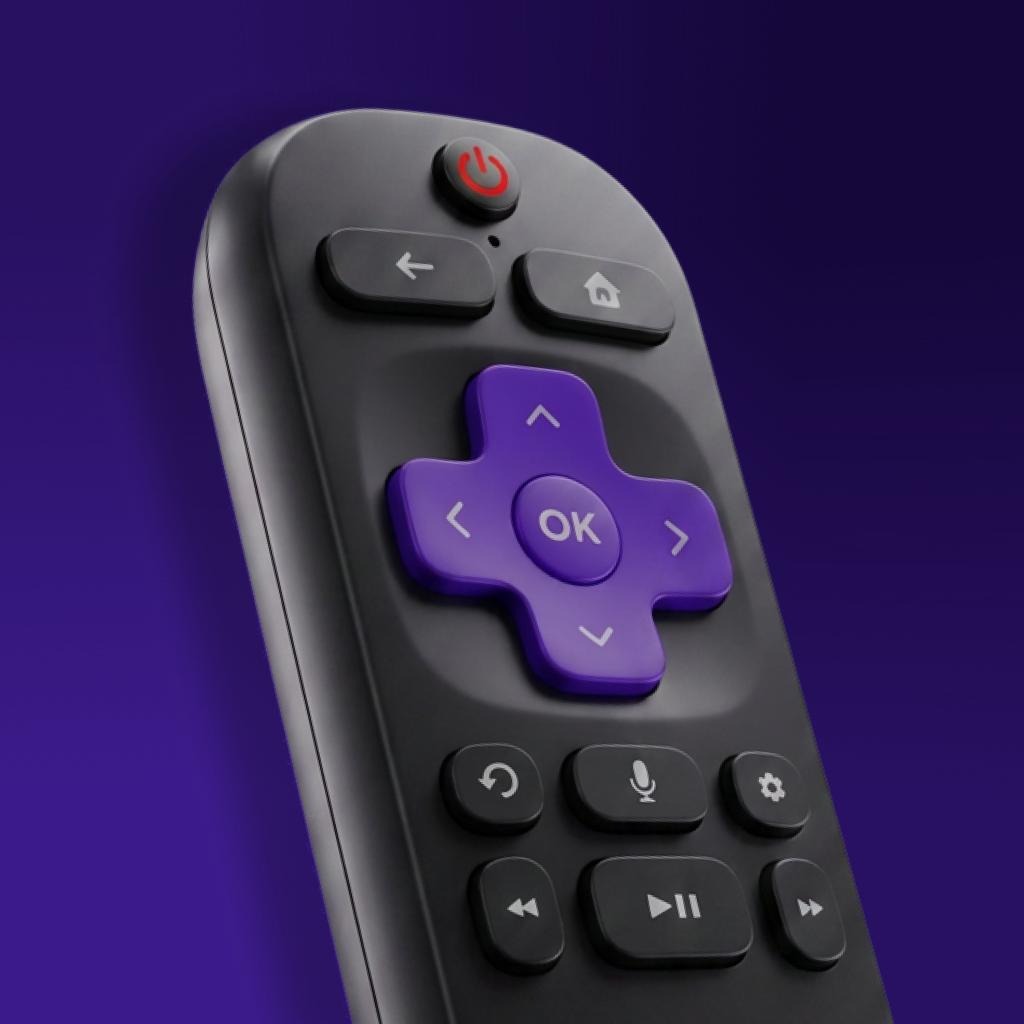
TV Remote
Lost your TV remote? Turn your iPhone into a universal remote for any Smart TV. Pair over Wi-Fi and control volume, apps, trackpad, and keyboard in seconds.

Your TV, Controlled From Your Pocket
Everything a remote does, and a lot more
Universal Smart TV Control
Works with most popular Smart TVs and streaming devices, including Samsung, LG, Sony, Roku, Fire TV, Android TV, Google TV, TCL, Hisense, Philips, Vizio, and more.
Quick Wi-Fi Pairing
Connect your TV and iPhone to the same Wi-Fi network, pick your TV from the list, and pair in seconds. No cables, no complicated setup.
Full Remote Controls
Volume, channels, mute, power, and playback controls. Every button you need to run your TV, right on your iPhone screen.
Trackpad Navigation
A smooth touchpad lets you glide through menus and home screens with a natural swipe, just like a laptop trackpad.
Keyboard for Fast Typing
Type searches, logins, and messages using your iPhone keyboard instead of slowly pecking letters on the TV screen.
Instant App Access
Jump straight into the apps installed on your TV with direct one-tap shortcuts, and pair multiple TVs to switch between rooms with ease.
Important
TV Remote is an independent universal remote app and is not affiliated with, endorsed by, or sponsored by any TV or device manufacturer. All product names, logos, and brands, including Samsung, LG, Sony, Roku, Fire TV, Android TV, Google TV, TCL, Hisense, Philips, Vizio, and others, are the property of their respective owners. Compatibility depends on your TV model and network, and some devices or features may not be supported.
Frequently Asked Questions
Everything you need to know about TV Remote
Is TV Remote free?
How do I connect my iPhone to my TV?
Which TVs does TV Remote work with?
Can I open TV apps and type with a keyboard?
Does TV Remote need internet?
Can I control more than one TV?
Does TV Remote collect my data?
What devices does TV Remote support?
Ready to Ditch the Remote?
Download TV Remote for free and keep a universal remote in your pocket at all times.